> For the complete documentation index, see [llms.txt](https://stealth-3.gitbook.io/docs/llms.txt). Markdown versions of documentation pages are available by appending `.md` to page URLs; this page is available as [Markdown](https://stealth-3.gitbook.io/docs/problem/recovery.md).
# Recovering a boot partition
Detailed instructions on how to recover a boot partition without losing files
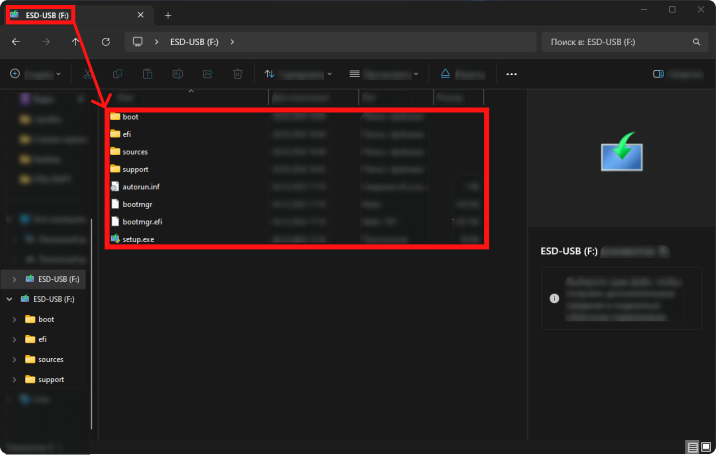
### The first thing you need to do is insert a bootable USB flash drive with Windows installation files formatted in FAT32.
{% hint style="info" %}
You can create them from another device.
{% endhint %}
The interface may vary.
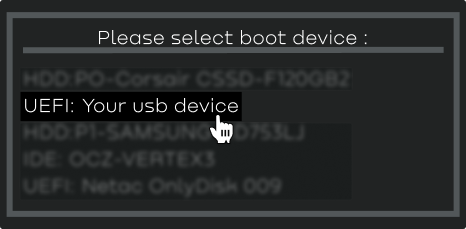
### Next, you need to enter the BIOS and boot by selecting this USB flash drive as the boot device.
The interface may vary.
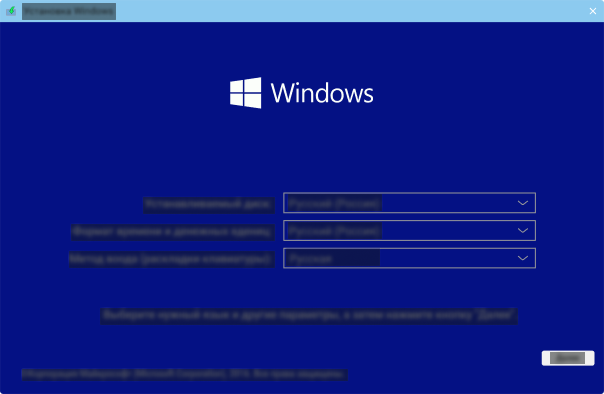
### After booting from the USB flash drive, you will see the "Windows Setup" window.
The interface may vary.
{% hint style="danger" %}
You don’t need to press anything, as we don’t need to go through the Windows installation process!
{% endhint %}
### We need to open the Command Prompt and execute the commands.
On the Windows setup screen, press **`SHIFT + F10`**.
The Command Prompt window will open.\
\
**In the Command Prompt, type:**
```
diskpart
```
{% hint style="info" %}
This will open the utility for managing disks and partitions.
{% endhint %}
**Next, type:**
```
list vol
```
{% hint style="info" %}
* A list of all volumes on the disk will appear.
* Find the boot EFI partition:
* **Size:** approximately 100 MB
* **File system:** FAT32
* **Label:** SYSTEM, EFI, or it may have no name
* **Note:** it usually does not have a drive letter.
{% endhint %}
**Next, type:**
```
sel vol "5"
```
{% hint style="info" %}
* Replace `5` with the number of the volume that corresponds to your EFI partition.
* After this, all subsequent commands will be executed on this partition.
{% endhint %}
**Next, type:**
```
format fs=fat32 quick
```
{% hint style="info" %}
A quick format of the selected volume is performed in the FAT32 file system, clearing its contents.
{% endhint %}
**Next, type:**
```
assign letter=Z
```
{% hint style="info" %}
The selected partition is assigned a temporary drive letter `Z:`, allowing it to be accessed from the Command Prompt.
{% endhint %}
**Next, type:**
```
exit
```
{% hint style="info" %}
We exit DiskPart and return to the Command Prompt.
{% endhint %}
**Next, type:**
```
bcdboot C:\Windows /s Z: /f all
```
{% hint style="info" %}
* `C:\Windows` — the path to your installed Windows (if the system drive has a different letter, replace it with the correct one).
* `/s Z:` — the partition where the boot files (EFI) will be copied.
* `/f all` — creates a bootloader for both UEFI and BIOS.
{% endhint %}
{% hint style="success" %}
After executing the command, you should see the message:
```
Boot files successfully created.
```
{% endhint %}
\
Here’s an example of how it should look!
If all steps were completed correctly, turn off the computer, remove the USB flash drive, and turn it on again.
{% hint style="success" %}
Done! We have successfully restored the Windows bootpart
{% endhint %}