> For the complete documentation index, see [llms.txt](https://stealth-3.gitbook.io/docs/llms.txt). Markdown versions of documentation pages are available by appending `.md` to page URLs; this page is available as [Markdown](https://stealth-3.gitbook.io/docs/problem/loader_error.md).
# Loader errors
Detailed instructions on how to solve errors before or after starting the bootloader
## Errors when trying to open the loader
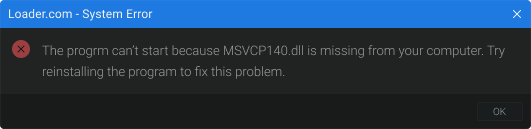
### System Error
This image is an example and may vary!
This error means that you are missing Microsoft Visual C++ base libraries
{% hint style="success" %}
Microsoft Visual C++ libraries must be installed
{% endhint %}
{% embed url="" fullWidth="false" %}
{% embed url="" %}
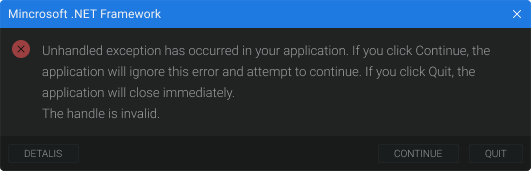
### Error .Net Framework
This image is an example and may vary!
This error means that you are missing the .Net Framework base libraries
{% hint style="success" %}
You need to install the .Net Framework libraries
{% endhint %}
{% embed url="" %}
{% embed url="" %}
***
## Errors during authorisation
### Old Windows! Need Win10 21H1 b19043
This error means that you do not have the correct Windows or version.
{% hint style="success" %}
A suitable Windows and version must be installed
{% endhint %}
{% hint style="info" %}
You can find a list of compatible Windows editions and versions[ here](/docs/use/system_requirements.md#list-of-supported-windows)
{% endhint %}
{% hint style="info" %}
You can find the Windows installation instructions [here](/docs/use/system_requirements.md#windows-installation)
{% endhint %}
### TPM Enabled!
This error means that you have Trusted Platform Module (TMP) enabled
{% hint style="success" %}
You need to disable Trusted Platform Module (TMP) in the system bios
{% endhint %}
#### Video instruction on how to disable TMP
{% embed url="" %}
It may have a different name on different motherboards, but it is usually referred to as TMP or Trusted Platform Module.
{% endembed %}
The video author's bios interface may be different from yours. To make your search easier, use the search engine to find a solution for your motherboard model
### No VMX support!
This error means that you have Virtualisation Technology (VMX) turned off
{% hint style="success" %}
You need to enable Virtualisation Technology (VMX) in the system bios
{% endhint %}
#### Video tutorial on how to enable Virtualisation Technology (VMX)
{% embed url="" %}
It may have a different name on different motherboards, but it is usually referred to as VMX or Virtualisation Technology.
{% endembed %}
The video author's bios interface may be different from yours. To make your search easier, use the search engine to find a solution for your motherboard model
### No AVX support!
This error means that you have a broken or unsupported AVX processor instruction
{% hint style="success" %}
Need to replace the processor with AVX support.
{% endhint %}
{% hint style="info" %}
You can find out if your processor supports avx [here](/docs/use/system_requirements.md#the-processor-must-have-support-for-avx-instructions)
{% endhint %}
### Legacy BIOS Mode!
This error means that you have Legacy bios mode
{% hint style="success" %}
You need to change the bios mode from Legacy to UEFI
{% endhint %}
#### Microsoft's official manual
{% embed url="" %}
#### Video tutorial on how to change bios mode from Legacy to UEFI
{% embed url="" %}
The video author's bios interface may be different from yours. To make your search easier, use the search engine to find a solution for your motherboard model
### UEFI SecureBoot ENABLED!
This error means that you have SecureBoot enabled
{% hint style="success" %}
You need to disable SecureBoot in the system bios
{% endhint %}
#### Video tutorial on how to disable SecureBoot
{% embed url="" %}
The video author's bios interface may be different from yours. To make your search easier, use the search engine to find a solution for your motherboard model
### Error: Connect to server
This error means that you have a poor connection to the product servers or no connection at all
{% hint style="success" %}
Must use a VPN when launching the product, also the product may not work or be temporarily unavailable, check the newsfeed or contact the seller
{% endhint %}
### Frozen product!
This error means that the product is temporarily unavailable or frozen for update
{% hint style="success" %}
Check the news feed or contact the seller
{% endhint %}
### Wrong game key!
This error means that you are using the wrong loader from another game of our product.
{% hint style="info" %}
Each product has its own loader
{% endhint %}
{% hint style="success" %}
Use the required loader
{% endhint %}
### Key has expired!
This error means that your key has expired
{% hint style="success" %}
A new key must be used
{% endhint %}
### Bad HWID!
This error means that the binding of the product to your computer has broken. This can happen for many reasons, from using a spoofer to changing the hardware or components of your computer.
{% hint style="success" %}
You need to contact the seller to reset the binding
{% endhint %}
{% hint style="warning" %}
The product can be used only for 1 computer! Activation of the product after resetting the binding on another computer from another city will result in blocking of the key.
{% endhint %}
### Bad res data!
This error means that you have a poor connection to the product servers or no connection at all
{% hint style="success" %}
Must use a VPN when launching the product, also the product may not work or be temporarily unavailable, check the newsfeed or contact the seller
{% endhint %}
***
## Launch errors
### Get boot part desc failed!
This error means that your boot partition is damaged or not functioning correctly.
{% hint style="success" %}
You need to restore the boot partition [using this guide](/docs/problem/recovery.md)
{% endhint %}
### Boot part not GPT!
This error indicates that your boot partition is using MBR.
{% hint style="success" %}
You need to convert the boot partition from MBR to GPT.
{% endhint %}
#### Video tutorial on converting the boot partition from MBR to GPT.
{% embed url="" %}
The BIOS interface in the video may differ from yours. To make it easier to navigate, use a search engine to find instructions specific to your motherboard model.
### Boot part wrong FS!
This error means that your boot partition is damaged or not functioning correctly.
{% hint style="success" %}
You need to restore the boot partition [using this guide](/docs/problem/recovery.md)
{% endhint %}
### Get boot part MP failed!
This error means that your boot partition is damaged or not functioning correctly.
{% hint style="success" %}
You need to restore the boot partition [using this guide](/docs/problem/recovery.md)
{% endhint %}
### Get boot part desc failed!
This error means that your boot partition is damaged or not functioning correctly.
{% hint style="success" %}
You need to restore the boot partition [using this guide](/docs/problem/recovery.md)
{% endhint %}
### Wrong boot part size!
This error means that your boot partition does not have the standard size.
{% hint style="success" %}
It is recommended to contact technical support so that specialists can resolve the issue remotely. For a quicker solution, you can also reinstall Windows yourself.
{% endhint %}
{% hint style="info" %}
You can find a list of compatible Windows editions and versions[ here](/docs/use/system_requirements.md#list-of-supported-windows)
{% endhint %}
{% hint style="info" %}
You can find the Windows installation instructions [here](/docs/use/system_requirements.md#windows-installation)
{% endhint %}
### No free space
This error means that your boot partition is full.
{% hint style="success" %}
It is recommended to contact technical support so that specialists can resolve the issue remotely. For a quicker solution, you can also reinstall Windows yourself.
{% endhint %}
{% hint style="info" %}
You can find a list of compatible Windows editions and versions[ here](/docs/use/system_requirements.md#list-of-supported-windows)
{% endhint %}
{% hint style="info" %}
You can find the Windows installation instructions [here](/docs/use/system_requirements.md#windows-installation)
{% endhint %}
### BP: Fail to del files!
This error means that your boot partition is damaged or not functioning correctly.
{% hint style="success" %}
You need to restore the boot partition [using this guide](/docs/problem/recovery.md)
{% endhint %}
### ERR: Wrte data!
This error means that your boot partition is damaged or not functioning correctly.
{% hint style="success" %}
You need to restore the boot partition [using this guide](/docs/problem/recovery.md)
{% endhint %}
### Get boot part MP failed!
This error means that your boot partition is damaged or not functioning correctly.
{% hint style="success" %}
You need to restore the boot partition [using this guide](/docs/problem/recovery.md)
{% endhint %}
### Error: hvix64/hvax64 not found!
This error means that you are missing the Windows files **hvix64** for Intel or **hvax64** for AMD.
{% hint style="success" %}
You need to restore the Windows system files using the commands below.
{% endhint %}
Open the Command Prompt as an administrator and enter the following command.
{% tabs %}
{% tab title="CMD" %}
```cpp
sfc /scannow
```
{% endtab %}
{% endtabs %}
Wait until the loading is complete, then enter the following command.
{% tabs fullWidth="false" %}
{% tab title="CMD" %}
```cpp
dism /online /cleanup-image /restorehealth
```
{% endtab %}
{% endtabs %}
After the loading is complete, the PC will restart, and you should launch the product following the instructions.
{% hint style="warning" %}
If the error persists after entering these commands, only a clean [reinstallation of Windows](/docs/use/system_requirements.md#windows-installation) will help.
{% endhint %}
## Blue Screen (BSOD)
### Stop code: XBOX VMCTRL CS TIMEOUT
This error means that your BIOS is damaged or not functioning correctly.
{% hint style="success" %}
You need to restore the BIOS settings.
{% endhint %}
#### Reset the BIOS to factory defaults.
* Restart your computer.
* Enter the BIOS/UEFI (usually by pressing Del, F2, F10, or Esc during startup, depending on the manufacturer).
* Find an option like **“Load Setup Defaults”**, **“Load Optimized Defaults”**, or **“Restore Factory Settings”**.
* Confirm the reset and save the changes (**Save & Exit**).
#### Enabling hardware virtualization
* **For Intel (VT-x):**
1. In the BIOS, go to the **Advanced**, **CPU Configuration**, or a similar section.
2. Find **Intel Virtualization Technology (VT-x)** and enable it (**Enabled**).
* For AMD (AMD-V):
1. In the BIOS, go to the **Advanced**, **CPU Configuration**, or **Processor Settings** section.
2. Enable **SVM Mode** or **AMD-V** (**Enabled**).
#### Enabling additional virtualization features
* **For Intel (VT-D):**
1. In the same BIOS section, find **Intel VT-d** and enable it (**Enabled**).
* **For AMD (KVM / IOMMU):**
1. Find **IOMMU** or **KVM** and enable it (**Enabled**).
#### Save and Exit
* Click **Save & Exit** to save the settings and exit.
* The computer will restart with the virtualization features enabled.
{% hint style="success" %}
Done! You have successfully restored the BIOS settings.
{% endhint %}
### Stop code: gdrv3.sys
This error indicates that a GIGABYTE utility is causing a blue screen on your system.
{% hint style="success" %}
You need to uninstall all GIGABYTE utilities from your PC, for example:
* Gigabyte EasyTuneEngine
* GIGABYTE App Center
* RGB Fusion / RGB Fusion 2.0
* System Information Viewer (SIV)
* Other GIGABYTE utilities
{% endhint %}